Published: August 26, 2020 | Last Updated: November 19, 2025

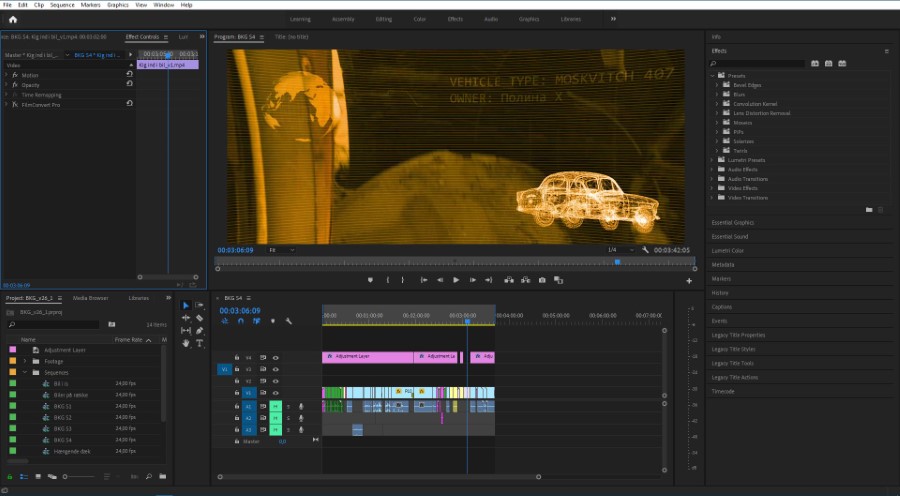
Getting started can seem daunting if you’re new to Adobe Premiere Pro. There are many options, and if you’re not used to working in a non-linear editor (NLE) like this, it’s good to watch some online video tutorials that can help.
I’ve spent a lot of time weeding out the bad stuff so that you don’t have to, and I’ve found five video tutorials that can quickly and easily take you from beginner to pro.
1. Adobe Premiere Pro Beginners Tutorial. Get Started With All The Basics.
The first tutorial is from Josh Olufemii.
He has a nice walkthrough that teaches you how to use Premiere Pro for the first time.
He explains how to create your first project and breaks down the basic windows and tools.
I want to make a single note at the beginning of the video. That is when Josh speaks about the ability to use the GPU-renderer (CUDA) core. A quick note: Remember that CUDA rendering is limited to computers with an NVIDIA graphics card.
So, if you own a graphics card from AMD or Intel, you should use the other option.
Other than that, Josh does an excellent job of explaining all the basics and walking you through your first project, from adding footage to understanding sequences, the toolbars, effects, b-roll footage, text, and music to editing it all together, simple color correction, and exporting.
Also, he has taken the time to break the video down into sections so that you can quickly revisit a specific chapter.
For many people, this single tutorial is all you need.
Of course, this is only scratching the surface. So, let’s look at more advanced stuff that expands on Josh’s video.
2. Editing 101. Get to know the basic types of cuts.
This video from Parker Walbeck walks you through the basic 12 cuts every video editor should know.
The cuts are:
- Hard Cut/Cut. A clean-cut between two clips.
- Jump Cut. Speeding up the time.
- L-Cut. Letting the audio continue over the next clip.
- J-Cut. Letting the audio set up the next clip.
- Cutting On Action. Matching the motion of the subjects in two clips.
- Cross-Cutting/Parallel Editing. Making it seem like two things are happening at once. Great for building tension.
- Cutaway. Cutting to an insert shot (often b-roll) that is different from the main piece of the action, and then back again.
- Match Cut. Cutting between two shots that share similar action or framing.
- The Smash Cut. Going from something calm to something intense or vice versa. It is great for keeping the attention of your audience by shifting the intensity of your film.
- The Crossfade/Dissolve. Fade-out to fade-in. A soft transition between two scenes.
- Camera Movement Cut. It’s a match cut but uses a similar camera movement between two clips to create a seamless transition. Think about whip pans, for example.
- The Invisible Cut. Using white/black frames or masking of something passing in front of the frame creates an invisible cut. It is most famously used in the movie 1917 by cinematographer Roger Deakins.
I like that Parker provides context for each cut. For example, when he talks about the hard cut, he also takes the time to explain the 30-degree rule when using this cut and/or changing the focal length.
3. Easy Masking Transitions in Adobe Premiere Pro
Knowing how to use the masking tool is an essential element of filmmaking. From creating seamless transitions to rotoscoping and hiding elements in a frame, masking is an essential and versatile tool.
This video from Justin Odisho goes into more detail on how to create ‘the invisible cut’ mentioned in Parker Walbeck’s video above using masks.
Creating a masking transition comes down to these four steps:
- Creating a mask
- Adjusting the mask parameters (fx feathering and mask expansion).
- Tracking the mask and creating keyframes
- Manually adjusting the mask using keyframes
It also helps if the two video clips move in the same direction to create a successful, seamless transition, but it isn’t a necessity. It all depends on what you want to achieve.
4. Color Grading in Premiere Pro Tutorial
This next tutorial from Denver Riddle at Color Grading Central walks you through the basics of using the Lumetri color grading panel and tools in Premiere Pro.
Denver is a professional color grading artist and filmmaker who does an excellent job of explaining the tools as he walks you through the process of color grading a clip.
He also goes into explaining the basic terminology for colors:
- Hue. What we usually call colors, e.g., red, green, blue, purple, etc.
- Saturation. The intensity/vividness of a hue/color.
- Luma. The brightness or shade of hue.
He also breaks down using the scopes:
- The waveform. Great for checking exposure.
- The RGB-parade. Great for checking white balance.
- The Vector Scope. Great for checking skin tones.
This is an excellent breakdown of the basics of color correction and color grading your footage.
5. Using the Audio Track Mixer in Premiere Pro
In this video from Jordan Dueck at Motion Array Tutorials, we learn how to use the Audio Track Mixer in Premiere Pro.
The Audio Track Mixer is different from the Audio Clip Mixer in that the Audio Track Mixer controls the audio for an entire track. In contrast, the Audio Clip Mixer controls the audio for each clip in an audio track.
You can watch a similar tutorial from Motion Array Tutorials on how to use the Audio Clip Mixer here.
Jordan does a good job of breaking down the functions of the Audio Track Mixer, from naming your tracks to adding effects and automating the audio using keyframes.
He also gets into using sub-mix tracks, a great tool for grouping tracks together to apply the same effects.
Summary
If you watch these five videos in the order they are presented here, you can quickly understand Premiere Pro. With a little practice, you can produce professional-looking videos.
They also serve as a solid starting point for more advanced work, such as integrating After Effects into Premiere Pro or working between advanced color grading suites like DaVinci Resolve.
Read Next: Free Color Grading Tutorials for DaVinci Resolve.