
Published: November 10, 2021 | Last Updated: August 7, 2025

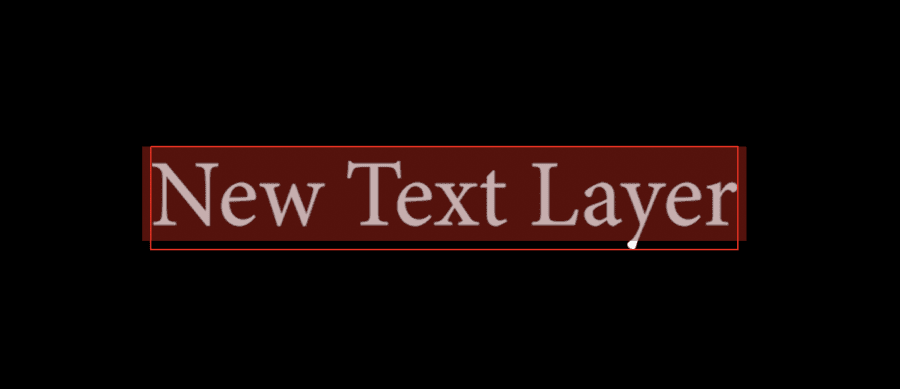
Adding a text file is extremely simple inside Premiere. There are four primary methods for creating a text file.

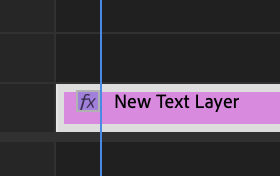
- With your sequence selected, press the keyboard shortcut Mac CMD+T or Windows CTRL+T. A new text file will appear in the sequence and the Program window.
Check out our guide to Premiere Pro shortcuts [PC/Mac].

2. Use the Type Tool by selecting the icon in the Tool panel or using the keyboard shortcut T. Next, click anywhere inside the Program window, and a new text file should appear on the Sequence and Program window.
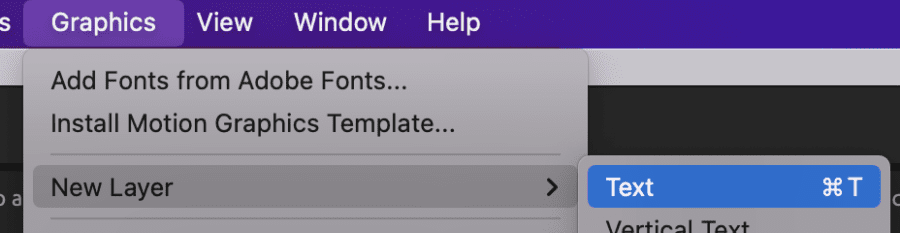
3. Go to Graphics > New Layer > Text. A text file should appear in the sequence and Program window.
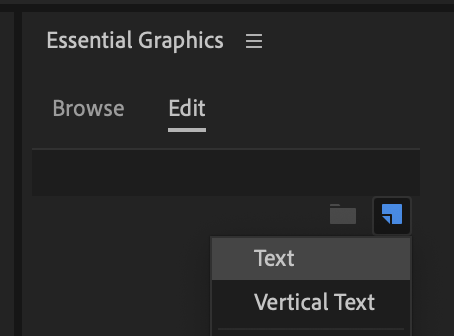
4. Visit the Essential Graphics panel by going to Window > Workspace > Graphics. The Essential Graphics panel will appear on the right side of the screen. Hit the New Layer icon pictured below and select Text. A text file should appear in the sequence and program window.
The simplest way to create a text file is to use the keyboard shortcut. However, it’s important to know all of the different methods, as they all have different use cases. Now, let’s learn how to edit the text file.
How to edit text in Premiere Pro
You can change the copy of the text file by clicking on the dedicated area of the Program window and typing whatever you desire. For this demonstration, I will leave the copy as is.
There are two main ways to edit the properties of a text file in Premiere: in the Effect Controls panel or the Essential Graphics panel.
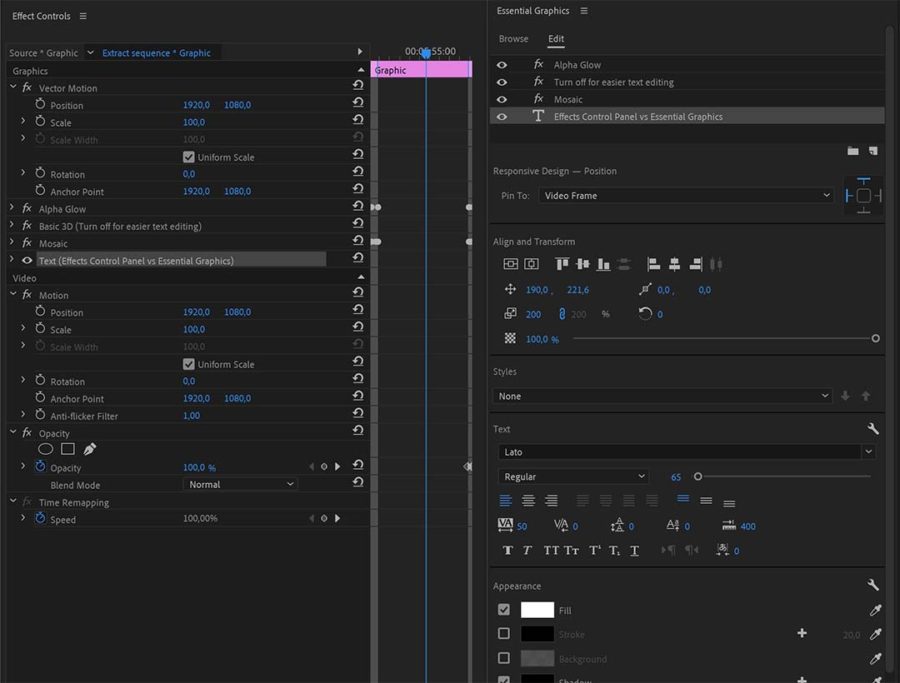
The Effect Controls panel is great if you want to make simple changes to your text and create animations with keyframes.
The Essential Graphics panel is great if you want to customize the text properties more.
As a side note, most property icons are not labeled directly. You can see the icon’s label by hovering your mouse above the icon.
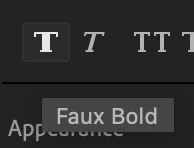
We will briefly review the Effect Controls panel later, so let’s begin in the Essential Graphics panel.
Editing text in Premiere Pro with the Essential Graphics Panel
So, let’s start by breaking down the most important features for editing text within the Essential Graphics panel in Premiere Pro.
Tip: Learn this in our in-depth guide on how to use the Essential Graphics panel in Premiere Pro.
Responsive Design – Position
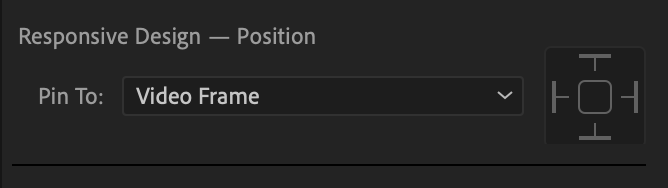
The first section of a text file on the Essential Graphics panel is the Responsive Design. This function will require you to create a shape as a background behind the main text layer. You can then attach the shape to the text by selecting the text file in the dropdown menu that currently reads “Video Frame.”
This will create a responsive graphic. This means that the background shape will change its size based on the length of the text. This helps you avoid repositioning the background shape once you’ve added or removed text.
You can then tell Premiere which edges to use via the icon pictured below. You can choose the edges individually or all by selecting the center icon.

Align and Transform

This section allows you to align the text perfectly based on certain parameters. The top layer of icons is related to alignment, which includes aligning vertically, horizontally, and more.
For example, you can center the text perfectly by hitting the Center Horizontally and Center Vertically icons pictured below.
This section also allows you to change the text file’s position, rotation, scaling, and opacity.
Styles

Premiere allows you to create and save text styles once you have changed the properties to your desire. This tool is helpful if you work with many fonts, colors, etc.
You can save the text style by clicking the dropdown menu and selecting Create Style. Premiere will save the style based on all of the text file’s current properties in the Essential Graphics panel.
Text

This section is where you will change the font, font size, spacing, etc. This should be similar to using any word processor that you may have used before.
Appearance

Here, you can change the color of the text, add a colored stroke around it, or add a colored background or shadow.

You can also mask the text on a shape in the Mask with a text checkbox at the bottom of this tab.

Editing and Animating text in Premiere Pro with the Effect Controls panel
Many of the same properties can be changed directly in the Effect Controls tab. There are only a few missing items compared to the Essential Graphics panel.
However, one major difference between the Effect Controls tab and the Essential Graphics panel is that animations must be created in the Effect Controls tab. This is because you cannot create keyframes in the Essential Graphics panel.
Let’s briefly touch on how to create text animations.
How to animate text in Premiere
Premiere makes it simple to create basic animations with text files. You can create animations with Position, Rotation, Scaling, Opacity, and some select Effect presets, aka Motion Graphics templates.
You create an animation by using keyframes with the allowed text properties.
Let’s create a simple fade-in transition using keyframes.

Change the Text file’s opacity to 0%. Then, create a keyframe by clicking on the Clock icon next to the Opacity property.
Next, use the keyboard shortcut right arrow to skip a few frames forward. I am on a 24-frame-per-second timeline, so I will skip ahead 12 frames for half a second. You can copy what I am doing or choose your own number of frames.

Change the Opacity to 100%. Since we used the keyframe clock on the Opacity property, a keyframe should be automatically created.

The text should now fade between the two keyframes from zero to 100%. You can use the same process to add motion with the Position, Rotation, and scaling properties as well.
You cannot create 3D animations inside Premiere. They require the use of After Effects.
Speaking of After Effects, you can see how to create and use Motion Graphics Templates (fx animated text) within AE here.
Premiere also has preset effects that can add motion to your text files. A great effect to use for animation is the Transform effect. This effect will give you keyframe options for the same Position, Rotation, Opacity, and Scaling properties as a general text or video file.
However, the Transform effect allows you to change the shutter speed of the text. This is great for adding motion blur to your animations, which will look more natural and dynamic.
A text file works similarly to a video file inside Premiere. This means that most of the Effect presets will work on these files. Unfortunately, there are too many to name, but here are a few of my favorites for text files.
- Transform – Adding motion blur to movement
- Gaussian Blur – Adding a transition blur effect
- Linear Wipe – Creating a customizable wipe transition
- Basic 3D – Creating basic faux 3D motions
Conclusion
This article covers the basics of creating and editing a text file in Premiere Pro. Mastering the basics is an important first step.
Once you learn what Premiere can and cannot do, creating dynamic text files will be much easier.
Read Next: Great places to free and paid MORGT templates.