
Published: February 18, 2020 | Last Updated: December 18, 2025

What is Slow-motion in film? Definition & Meaning
Slow-motion is a filmmaking technique in which the action in the frame is made to appear slower than it was recorded, usually by capturing film or video at a much faster speed than it will eventually be played.
This might sound counterintuitive, but all slow motion is created by high-speed video. When I say high speed, I’m talking about a higher frame rate.
Good slow-motion video requires a deep understanding of various elements, such as frame rates, lighting techniques, and equipment choices.
This article provides a basic understanding of recording slow-motion videos and offers tips and tricks for getting good results.
Key Takeaways
- Use cameras with high frame rates (e.g., 60, 120 FPS) for detailed, smooth slow-motion effects.
- Increase lighting to compensate for the higher frame rates, using professional LED lights to avoid flicker.
- Understand and adjust the relationship between lighting frequency and frame rate to minimize flicker in your footage.
- Use manual settings to precisely control frame rate and shutter speed, enhancing the slow-motion quality.
- Using a gimbal to stabilize footage provides a smooth, floating effect that complements slow-motion videos.
Frame Rates and Slow-motion video
Frame rate is the speed at which your camera captures frames. The more frames you have per second, the slower you can play the footage back and keep it looking smooth.
For example, the typical frame rate is 24 frames per second, or 24 FPS, the standard “normal speed” for most theatrical films and video projects. By capturing frames at a rate higher than 24 FPS, your footage will appear slower when you play it back at the normal 24 FPS speed.
Here’s a video from The Slanted Lens that explains frame rates and slow motion well.
On old-school film cameras, capturing frames at a higher speed was possible by over-cranking the camera’s hand crank faster. Overcranking is still used today, but it refers to the process done through the camera’s internal mechanism rather than an actual crank.
What Frame Rate is best for Slow Motion?
Multiple frame rates can be used to create slow-motion video. Any frame rate above 24-30 FPS is useful, though they vary in look and feel.
Generally, the higher the frame rate, the slower you can make your footage and the longer your slow-motion shot can last.
This doesn’t mean that slower is always better, however. It all depends on how slow your footage looks and how long you want the clip to go for.
Video footage captured at different frame rates looks different when played back at 24 fps.
Here’s a good video from B&H with some solid examples of how the various frame rates change the look and speed of your slow-motion video:
Starting at 1:15, you can see four different clips taken at four different frame rates side by side to get a sense of how each one looks and feels compared to the other.
Notice how the 60 fps shot is slowed down but is still relatively quick? And how does the clip run out faster than the 120 and 180 fps versions?
Meanwhile, the 120 and 180 fps clips are more like what we imagine as “slow motion” based on what we’re used to seeing in popular culture.
But as the video creators point out, the 180 fps version might be too slow and dragged out, whereas the 60 fps version, by comparison, is too quick—leaving 120 fps as the sweet spot for awesome slow-motion!
Shutter Speed and Slow-motion video
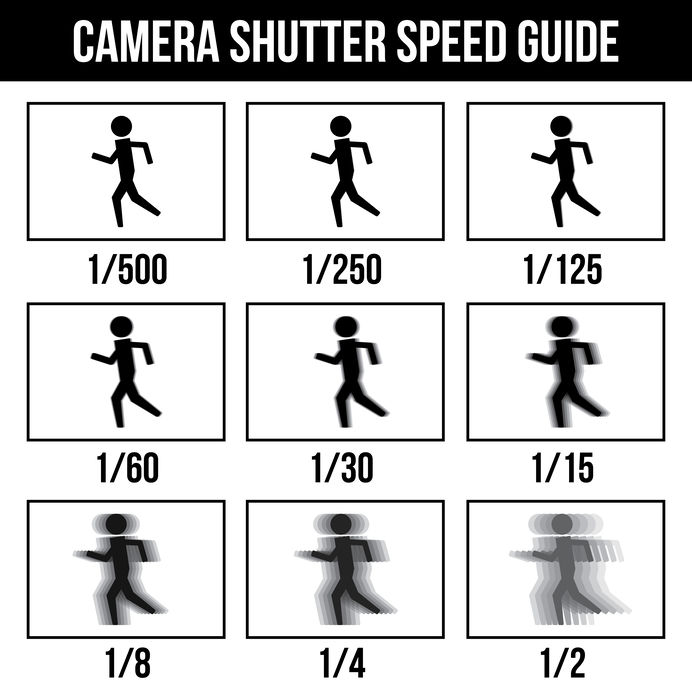
Your camera’s shutter speed is another important element for making slow motion look right.
Shutter speed refers to the length of time your shutter is open, exposing your camera’s sensor or, in the case of film cameras, the film itself to light.
The longer your sensor or film is exposed to light, the more exposed the image will be, or, in the case of high-frame-rate shooting, the more motion blur will appear on your footage.
Here’s an incredible video from The Slo Mo Guys that captures the shutter in a camera at 10.000 fps:
For smoother, less blurry footage, your shutter must be open for less time. However, the less time your shutter is open, the less light your camera will be exposed to.
This shutter speed issue is why some slow-motion shots in older movies have that “over-cranked”, blurry quality—and why your slow-motion footage could turn out the same way if you don’t change the shutter speed properly.
What Shutter Speed should I use for Slow-Motion shots?
When capturing slow-motion footage, the goal is to create a natural amount of motion blur. Your shutter speed is set to be open for 1/50th of a second when shooting at the standard 24 frames per second.
That means, to recreate the most natural-looking motion blurs when shooting slow motion, always set your shutter speed to twice your frame rate.
Following the double or 180° rule, match your shutter speed to whatever frame rate you shoot.
You can learn more about shutter speeds and the 180° rule in our article How to Choose the Right Camera Settings for Video Production.
Depending on your camera, you may have the option for a true 1/48th shutter speed, but certain cameras, like DSLRs, don’t give you as wide a range as cinema cameras.
Here’s a quick ratio table as a shorthand to help you set your shutter speed at whichever frame rate you decide to shoot your slow-motion scene with:
- 24 fps = 1/48th or 1/50th shutter speed
- 30 fps = 1/60th shutter speed
- 60 fps = 1/120th shutter speed
- 120 fps = 1/240th shutter speed or 1/250th shutter speed.
- 180 fps = 1/360th shutter speed
Once you know what you’re doing, you can always creatively choose to shoot at higher or lower speeds to create a specific effect.
For example, if you want a blurrier, over-cranked look to create a chaotic, visually disorienting moment, you can shoot your slow-motion scene at a lower speed.
Also, you might be in low-light situations where you can’t shoot at such high shutter speeds. In that case, you’ll have to lower your shutter speed to get usable footage. It’s better to lower your shutter speed than get unusable noisy footage.
Lighting and Slow-motion video
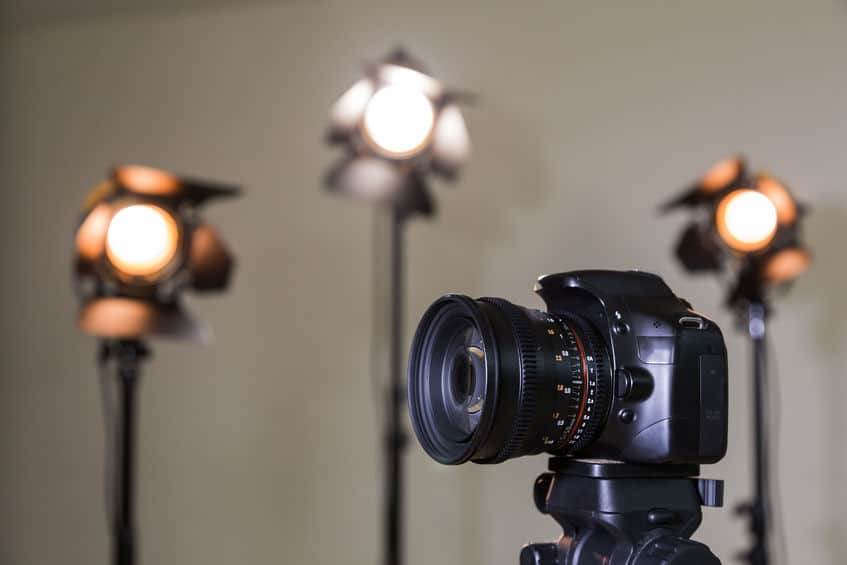
In addition to changing the smoothness and crispness of your slow-motion footage, higher shutter speeds require more light to be properly exposed.
This is because it takes less light when your camera’s shutter is open for less time. The higher the frame rate and shutter speed, the more light you need.
Let’s say you are shooting a daytime exterior in slow motion. Because you have the sun as a key source, you won’t be as affected by shooting at higher speeds and frame rates.
Shooting at a higher frame rate/shutter speed may negate the need for an ND filter and make your footage look less exposed positively.
The same is not true for shooting slow motion during a night exterior. In actuality, you’ll need a lot more light than you would have in a normal situation because less light will get through to your camera’s sensor.
One more thing: watch out for Light Flickering!
Another thing you will discover at higher frame rates is how certain light creates a flicker effect.
When you shoot a scene at a normal frame rate, subtle changes in light are harder to detect. But even subtle changes can make a big difference when you shoot at a higher frame rate.
One example is shooting slow-motion footage with tungsten units. These units have an alternating current that rapidly heats and cools as they cycle.
When shooting at high shutter speeds, this cycling appears at a flicker in your footage.
Here’s a video from “I’m Jason Anthony” that talks about light flicker and slow-motion:
To avoid this, you can use 2K or higher units, as the size of their filaments doesn’t allow them to cycle and cool down the same way. You can also use HMI or Fluorescent bulbs if you pair them with electronic flicker-free ballasts.
LEDs are the wildcard – the higher-end professional units are built not to flicker (flicker-free), but make sure you research a particular unit before you rent or buy it specifically for a slow-motion/high frame rate shoot.
If you DO get flicker, here’s a short video on how to remove it (starting at 1:25):
Shoot in Slow-Motion with a Gimbal.
If you are a videographer shooting B-roll for a commercial project or a narrative scene without dialogue intended to introduce a character, consider shooting your slow-motion footage with a gimbal.
Using gimbals to shoot your footage gives your work a magical or elevated feeling. Watching footage that seemingly floats through the air around a subject is one of the coolest camera tricks.
Applying a slow-motion effect to the footage you shoot with your gimbal can create incredible shots and elevate an already beautiful or cool scene to feel even higher in production value.
Faces get more expressive. Actions are more defined. Moments feel bigger. For more about that, this video from Momentum Productions provides some great examples (and How-To’s) on the how and why of using slow motion with your gimbal:
Watch the first two minutes to get a sense of what we’re talking about, and think about how you can use slow motion combined with your own gimbal or steadicam rig to elevate your filmmaking and videography and create awesome slow motion!
Summing Up
I hope you found this introduction to slow-motion video useful.
Once you capture your slow-motion footage, unless your camera has variable frame rate capabilities, you must convert your higher frame rate footage back to 24 fps in post-production.
The next step of our guide will be how to do that and different tools you can use to create awesome slow-motion videos with editing!
Read Next: How to Edit Slow-Motion Video.

I love slow motion videos!