
Published: October 20, 2021 | Last Updated: November 11, 2025

Cropping a video is the removal of unwanted parts from an image. Typically, this is done in a square or rectangular shape.
Premiere Pro has a Crop preset effect, making this extremely easy to accomplish.
This article explores using the Crop effect in Premiere Pro and provides a few creative (animated) examples.
How to add the Crop effect to a video clip
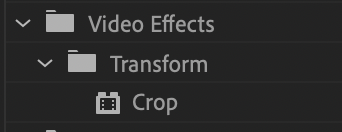
The Crop effect can be easily found under the Effects tab in the Project Panel. Next, go to Video Effects > Transform > Crop. You can then click and drag the Crop effect onto your clip.
The effect itself has several parameters. You can mask it just like most other effects, change the percentage of the crop in any direction, and change the edge feathering.
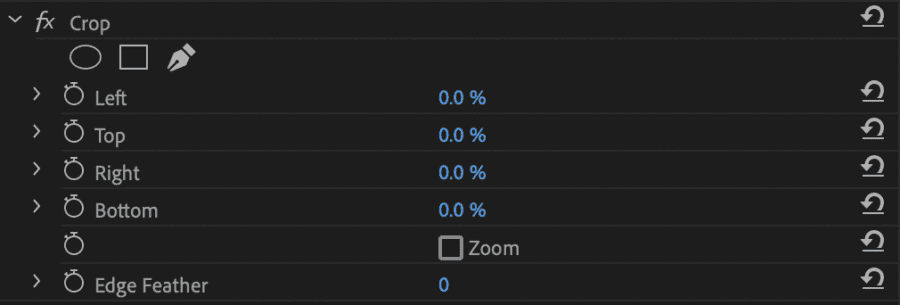
The percentage of the crop is about the size of the screen rather than the video resolution. For example, adding a 50% crop to the Top would look the same for a 1080 HD video and a 4K UHD video.
Read more on changing the sequence resolution in Premiere Pro the right way.
Here is a before and after example with a 50% crop added to Top:
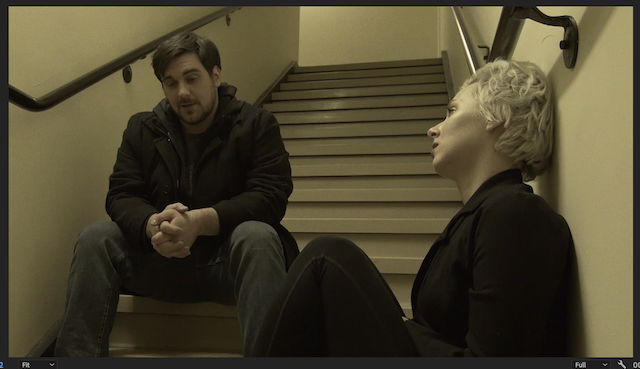
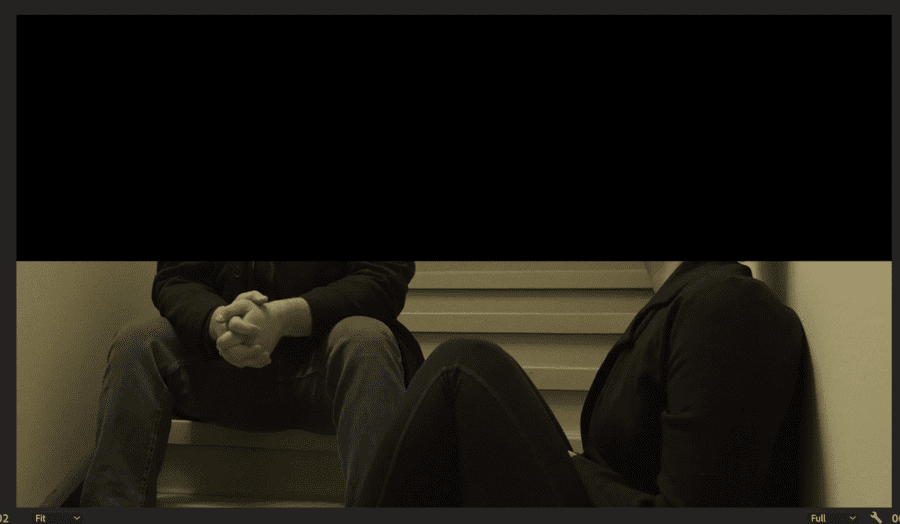
100% Cropping to any direction of the video will remove it entirely from the screen.
Edge feathering will soften the edges of the crop.
See the before and after photo below with 75 points of feathering added and 25% cropping in all directions:
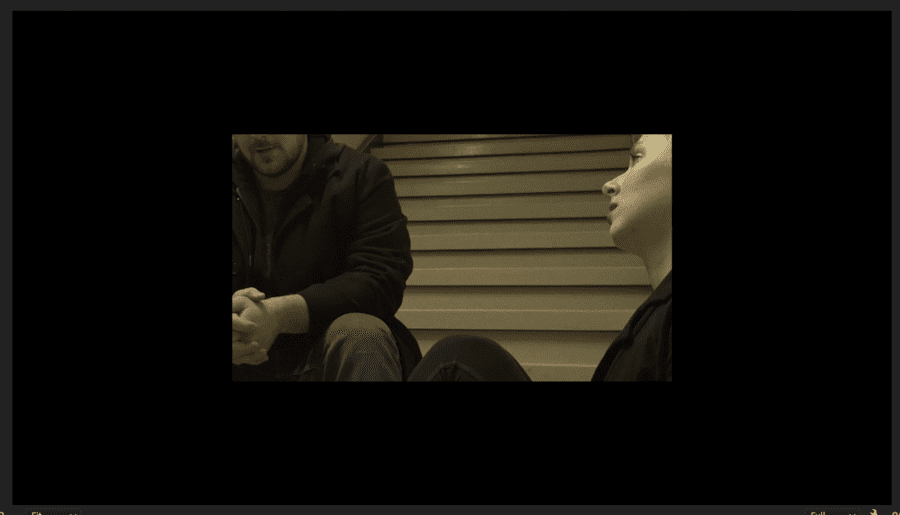
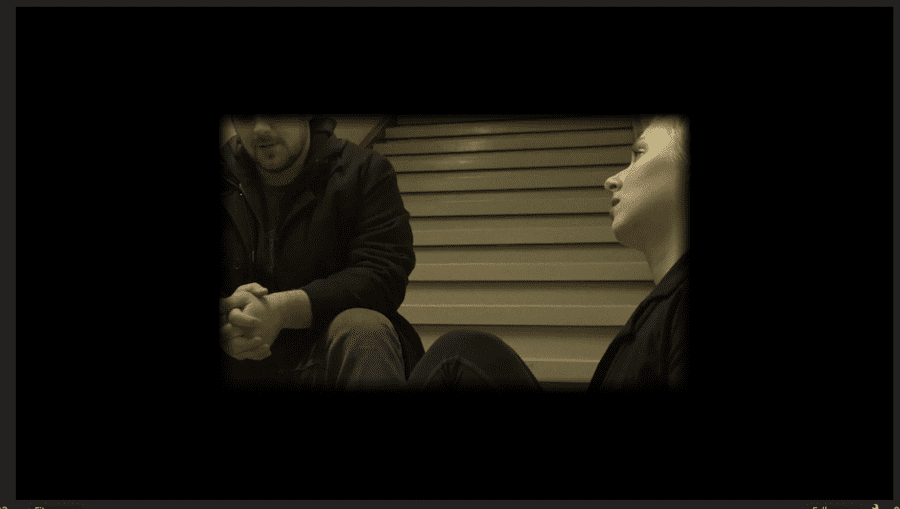
As you can see, the edges in the after photo are much softer than in the before photo. This is useful when layering images on top of each other. We will use this again later during one of our creative samples.
All of these parameters can also be animated using keyframes. For example, let’s create a fake CinemaScope 2.35 aspect ratio letterbox on the video.
See more on making cinematic black bars the right way.
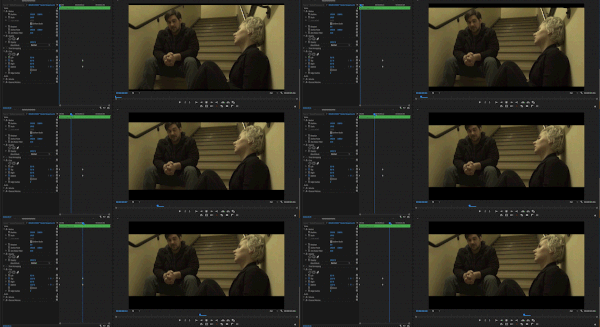
I will add a keyframe at the beginning of the clip while all of the parameters are at 0%. I will then move the playhead forward a couple of frames and change the Top and Bottom parameters to 15%.
As you can see in the image below, the cropping animates to completion between the two keyframes.
This is one example of how to use the Crop effect creatively. Let’s look at three other examples of how to use this effect.
How to create a split screen in 4 easy steps
Let’s say you are editing an interview from a Zoom call with two speakers and want to make the video more dynamic. The split-screen technique has four easy steps and is an easy way to do that:
Step 1: Add clips to timeline
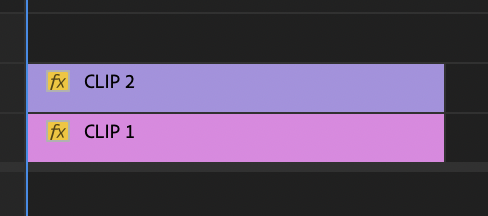
Add both interview clips of each speaker on top of each other on your main timeline. You should only be able to see the clip on the V2 track on the program monitor.
Step 2: Position clips
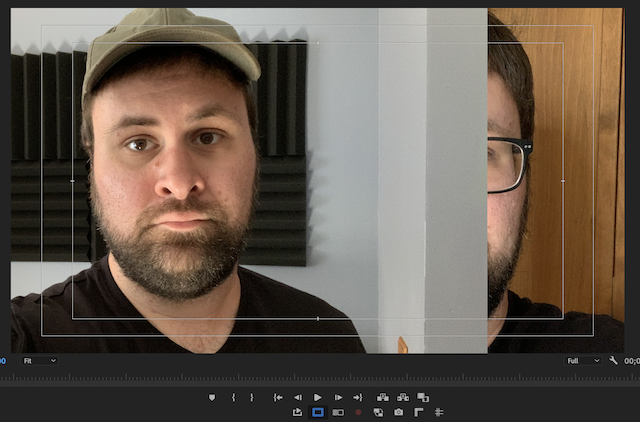
Next, position the clips so that both are roughly centered on their half of the screen. This doesn’t need to be perfect; we must adjust after adding the Crop effect.
Turning on the Safe Area guides in the Program window is a useful tool for this. This will help you estimate the positioning better.

Step 3: Add Crop effect to the top clip
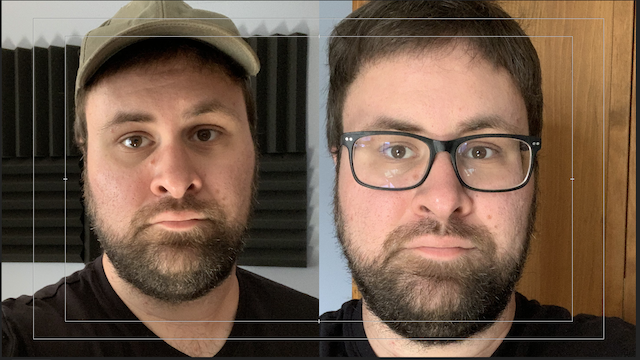
Add the Crop effect to your clip on the V2 track. You don’t need to add it to both clips, as the clip on V2 will hide any unwanted spacing. Adjust the Left or Right parameter to remove the unwanted space from your clip.
Step 4: Readjust clips (if needed)
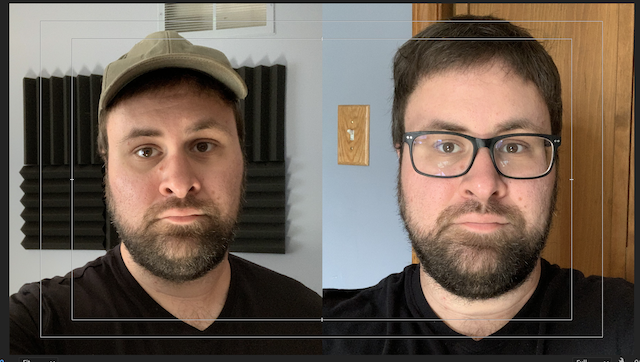
Last, readjust your clips’ Crop parameters or positioning based on how you want everything to look. Again, use the Safe Area margins to help guide you.
This should be your final result.
How to create a linear wipe transition in 4 easy steps
A linear wipe transition is when the clip’s edge shifts across the screen. Think of the wipe transitions used in the Star Wars movies. Let’s create one of these transitions in four easy steps.
Step 1: Add clips to timeline
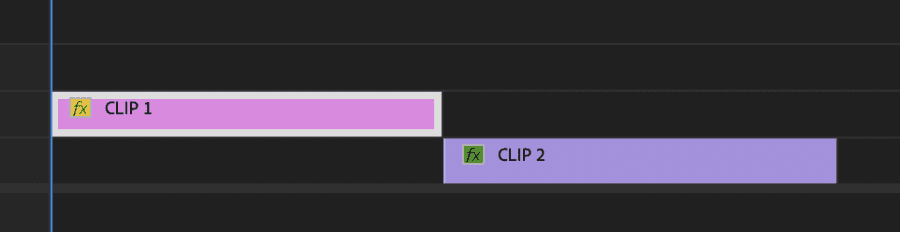
This effect requires two clips. Place the first clip on the V2 track and the second on the V1 track behind the first.
Step 2: Add Crop effect to top clip
Add the crop effect to the top clip. We don’t need to add it to the second clip, as the transition will only happen in the first clip.
Step 3: Add keyframes
Next, decide on the direction of the transition. You can do it from left to right, right to left, bottom to top, or top to bottom. For this demonstration, I will do it from left to right over 12 frames.
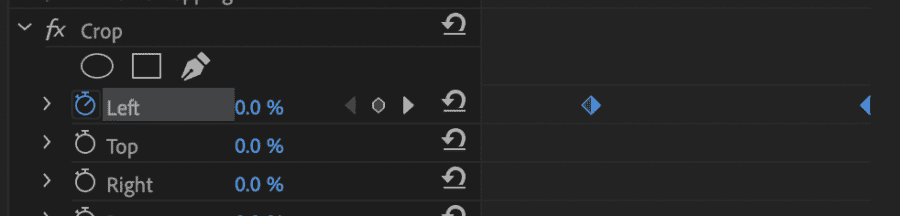
Add a keyframe to the Left parameter at 0% 12 frames behind the end of the clip. Next, add another keyframe to the Left parameter at 100% at the end of the clip. If you scrub your playhead between the keyframes, you should see the animation happen.
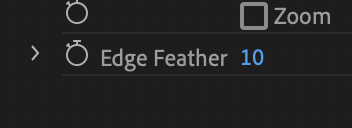
As a bonus, this would be a great place to add Feathering. 10 points of feathering is a great place to start. This is optional.
Step 4: Move second clip under keyframed area
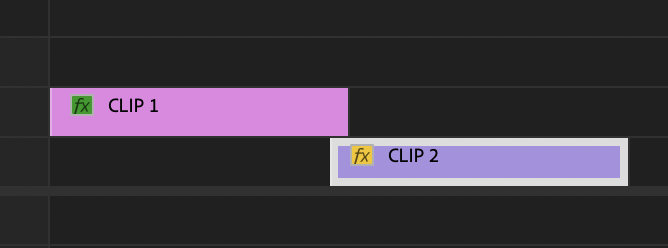
Last, move the second clip on the V1 track under where your keyframes are located. You can do this simply by moving the clip with your mouse. Adjust until you have your desired effect.
The final transition should look similar to the image below.

How to create a text reveal in 3 easy steps
You can also create a unique text reveal using the previous method. Let’s create a text reveal in three easy steps.
Step 1: Add text to timeline
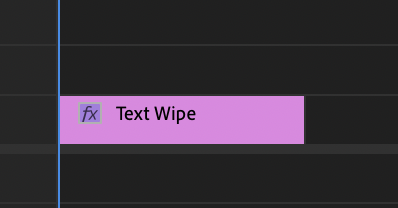
You can create a new text layer by hitting Mac CMD+T or Windows CTRL+T. You can write whatever you like on the text layer.
See more Premiere Pro keyboard shortcuts that will optimize your workflow.
Step 2: Add Crop effect
Add the crop effect to the text layer like in the previous examples.
Step 3: Add keyframes
I want to reveal my text from top to bottom, which will reverse the previous example’s keyframes. At the beginning of the clip, add a keyframe to the Bottom parameter at 100%.
Move the playhead a few frames forward and add another keyframe to the same parameter at 0%. We’re doing this because we create a reveal rather than removing the image.

Again, this would be another great place to add feathering to create a smoother transition.
The final reveal should look similar to the image below.

Conclusion
As you can see, the Crop effect in Premiere Pro has many great creative uses. There are many more ways to use this effect to create unique shots or transitions in your videos. Play around with this effect and see what you can create.