
Published: December 18, 2025

What is A megapixel (MP)? Definition & Meaning
A megapixel (MP) is one million pixels in a digital image. A pixel is the smallest “dot” of image data (color and brightness) in a file. When you hear “24 MP,” it means the final photo contains about 24 million pixels.
Quick Formula:
Megapixels = (image width × image height) ÷ 1,000,000
Example: 6000 × 4000 = 24,000,000 pixels ≈ 24 MP.
That said, a megapixel isn’t just a megapixel. They come in different shapes and sizes, and their importance depends on what you’re going to use your photograph or footage for.
In this article, you’ll learn:
- What a megapixel is, and how it connects to resolution (width × height in pixels)
- How megapixels affect photography workflows like cropping, reframing, and stabilization headroom
- How to estimate print size using PPI, plus what changes when you print posters vs small prints
- Why the same megapixel number can look different on different sensor sizes, and what that means for noise and dynamic range
- How megapixels translate to video formats like 1080p, 4K, and 8K (megapixels per frame)
- Common megapixel confusions, including PPI vs DPI, aspect ratio crops, and phone high-MP modes
So let’s dig in…
Megapixels vs Resolution
Resolution usually means the pixel dimensions of an image file (for example, 6000 × 4000). Megapixels are simply another way of expressing that same information as a single number.
Two cameras can have the same megapixels but different pixel dimensions if they use different aspect ratios (3:2 vs 4:3) or different crop modes.
Common megapixel counts and typical pixel dimensions
Exact numbers vary by camera model, but these are common “ballpark” dimensions for a 3:2 image:
| Megapixels | Typical pixel dimensions (3:2) | Notes |
|---|---|---|
| 12 MP | ~4240 × 2830 | Plenty for web + moderate prints |
| 24 MP | ~6000 × 4000 | Very common “all-rounder” |
| 33 MP | ~7040 × 4690 | Often used in modern full-frame |
| 45 MP | ~8200 × 5470 | Great for large prints + cropping |
| 61 MP | ~9560 × 6380 | High detail, heavier workflow |
How Megapixels Affect Cropping
Cropping removes pixels. The key detail: if you crop the width and height by a factor, the megapixels drop by the square of that factor.
Cropping Math
If you keep 50% of the width and 50% of the height, you keep 25% of the pixels.
New MP = Original MP × (crop fraction)²
Example: 24 MP × (0.5)² = 6 MP
This is why higher megapixels are most valuable when you:
- photograph distant subjects (wildlife, sports),
- often reframe after the fact,
- need multiple crops from one photo, or
- must deliver large prints from imperfect framing.
Stabilization, leveling, and “hidden” crops
Even if you don’t “crop creatively,” you may still lose pixels to:
- straightening a horizon,
- perspective correction (architecture),
- electronic stabilization (especially video),
- in-camera crop modes (APS-C crop on full-frame, digital zoom, etc.).
Megapixels and Print Size
Print size depends on how many pixels you print per inch. That measurement is PPI (pixels per inch).
- 300 PPI is a common “close viewing” target (books, hand-held prints, portfolios).
- 200–240 PPI is often excellent for wall prints.
- 150 PPI can look great for large pieces viewed from farther away.
You can calculate the print size by using this formula:
Print width (in) = pixel width ÷ PPI
Print height (in) = pixel height ÷ PPI
Print size examples (typical 3:2 files)
| File | Approx pixels | 300 PPI | 240 PPI | 200 PPI | 150 PPI |
|---|---|---|---|---|---|
| 12 MP | ~4240 × 2830 | ~14.1 × 9.4 in | ~17.7 × 11.8 in | ~21.2 × 14.1 in | ~28.3 × 18.9 in |
| 24 MP | 6000 × 4000 | 20 × 13.3 in | 25 × 16.7 in | 30 × 20 in | 40 × 26.7 in |
| 45 MP | ~8200 × 5470 | ~27.4 × 18.3 in | ~34.2 × 22.8 in | ~41.1 × 27.4 in | ~54.8 × 36.5 in |
Important: aspect ratio can force a crop
Many cameras shoot 3:2. Popular print sizes like 8×10 are 4:5. If you print 3:2 to 8×10, you must crop, so plan extra pixels if you use those sizes often.
PPI vs DPI (common confusion)
PPI is image resolution (pixels per inch). DPI is printer behavior (dots per inch). In practice, you usually choose a print size and PPI; the printer driver handles DPI internally.
Changing only the PPI number in software does not create new detail unless you resample (interpolate) the image. The pixel count is what determines how much real detail you have.
What about upscaling and interpolation?
But, but… what about upscaling, I hear you say. The cool thing is that you can print larger than the “math” suggests by resampling the image (software creates new pixels).
Good upscaling can look excellent (especially when viewing distance increases), but it does not add true captured detail the way more megapixels (or better optics) can.

Billboards vs fine-art prints: why viewing distance changes everything
Print quality is not only about megapixels. It is about viewing distance. The farther people stand from the print, the lower the needed PPI to look sharp.
Fine-art photo prints (close viewing)
Gallery prints are often viewed from up close, so you want more pixels per inch. A common target is around 240–300 PPI at the final print size. This is where “pixel peeping” can match what people see, since viewers can stand close and inspect detail. If you want a deeper look at that genre and workflow, see FilmDaft’s guide to fine-art photography.
Posters, roll-ups, trade show graphics (medium viewing distance)
These are usually viewed from a few steps back. Around 150–200 PPI often holds up well, depending on size, design, and viewing distance.
Billboards and building wraps (far viewing distance)
These are meant to be seen from far away. The print can use much lower effective PPI and still look sharp at normal viewing distance. If you inspect it from up close, you will often see softness or texture, but that is not how it is meant to be viewed.
PPI vs DPI
PPI is the pixel density of your image at a chosen print size. DPI is how a printer places ink dots. A printer can use many dots to reproduce one pixel, so DPI and PPI are not the same thing.
Why pixel peeping can mislead you
Viewing an image at 100% on a monitor is like inspecting a huge print from inches away. That changes what “sharp enough” means.
Where the circle of confusion fits
Circle of confusion is the blur limit that depth-of-field math treats as “acceptably sharp.” That limit depends on assumptions about print size and viewing distance. If you evaluate sharpness closer than those assumptions, more blur becomes visible. For the full definition, see circle of confusion.
Why Megapixels Don’t Guarantee Sharpness
Megapixels tell you how many pixels exist. Sharpness depends on how much real detail reaches the sensor and how cleanly it’s captured and processed.
1) Lens detail (resolving power)
If a lens can’t resolve fine detail, adding more pixels won’t magically create it. Higher megapixel cameras can reveal:
- soft corners,
- aberrations,
- field curvature,
- focus shift.
2) Focus accuracy
A slightly missed focus can look “fine” at small web sizes yet fall apart in large prints. Higher megapixels make focus errors easier to notice (because you’re able to inspect more detail).
3) Motion blur (shutter speed + subject movement)
More megapixels can be wasted if the image is blurred by camera shake or subject movement. The higher your pixel density, the more obvious tiny shakes become at 100% view.
4) Diffraction at small apertures
Diffraction is an optical effect that softens fine detail at very small apertures. On higher-density sensors, diffraction can become noticeable sooner when you zoom in heavily or print large. This doesn’t mean “never stop down”—it means you should balance depth of field vs peak sharpness.
5) Image processing (RAW conversion, sharpening, noise reduction)
Sharpness is strongly influenced by:
- demosaicing (turning sensor data into full color),
- in-camera JPEG sharpening,
- noise reduction (which can smear detail),
- your final export size (downsampling can make images look cleaner and sharper).
Sensor size and pixel pitch: why 24 MP is not always the same
Two cameras can both shoot 24 MP and still behave differently. A 24 MP full-frame sensor is physically larger than a 24 MP APS-C sensor, so the full-frame sensor usually has larger pixels. The APS-C sensor usually has smaller pixels packed more tightly.
Pixel size matters because each pixel collects light during the exposure. When pixels are smaller, each one starts with less light to work with. That can change what you see in noise, shadows, and fine detail.
Smaller pixels often lead to three practical issues:
- More visible noise per pixel: Each pixel collects less light, so noise can show up sooner when light is limited.
- Softness shows up faster when you zoom in: Small blur from focus errors, camera shake, or diffraction can look stronger at high magnification.
- Higher demands on the lens and technique: Soft lenses, missed focus, and slow shutter speeds can be easier to spot.
What this changes for low light
In low light, larger pixels can help because each pixel can collect more light at the same shutter speed and aperture. That often means cleaner shadows at the same ISO.
Smaller pixels can still look good, but they may need more light to stay clean. In practice, that can mean a wider aperture, a slower shutter speed, or more light on set.
What this changes for dynamic range
Dynamic range is the gap between highlights that still hold detail and shadows that still hold detail. When the gap is too wide for the camera, highlights clip or shadows fall into noise.
Pixel size can affect dynamic range, but it is not the only factor. Sensor design, read noise, and dual-gain behavior can shift dynamic range a lot, even when two cameras have the same megapixel count.
How to think about it when filming
If you match framing and exposure on two cameras with the same megapixels:
A larger sensor often keeps shadows cleaner at higher ISO and holds highlights a little longer before clipping.
A smaller sensor often needs more light, a wider aperture, or a slower shutter speed to reach the same noise level.
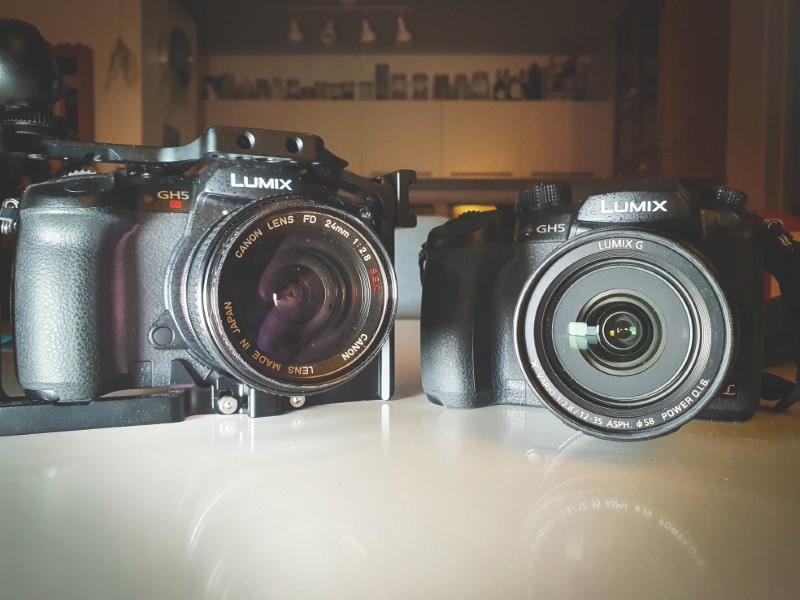
Example: GH5 vs GH5S (why sensor and pixel size matter)
The Panasonic GH5 and GH5S both use a Micro Four Thirds sensor size, but they do not behave the same in low light. The key difference is pixel size. The GH5 records about 20 MP, while the GH5S records about 10.2 MP. Fewer megapixels on a similar sensor size means the GH5S pixels are larger.
The GH5S also has Dual Native ISO (for example ISO 400 and ISO 2500 in many modes), which is designed to keep noise lower when you jump to its higher base ISO.
How this shows up when you shoot
If you shoot the same scene with the same framing, aperture, and shutter speed, then raise ISO:
GH5S: Shadows usually stay cleaner at higher ISO, so you can lift darker areas in the grade with less noise.
GH5: Shadows usually get noisy sooner at the same ISO, so you often need more light, a wider aperture, or a slower shutter speed to reach a similar noise level.
Real-world tests and shootouts often show the GH5S looking cleaner than the GH5 at higher ISO values, including around the GH5S higher native ISO.
What about highlights and dynamic range?
Cleaner shadows can feel like “more usable dynamic range” because you can protect highlights and still bring up the darker parts without the image turning gritty. You still cannot save highlights that clipped in-camera, so exposure choices still decide highlight detail on both cameras.
Camera generation and processing can still flip the result. A newer, smaller sensor can beat an older, larger sensor.
One more practical point matters. If your final delivery is smaller than what you captured, downscaling can make the noise look lower. That is why two cameras can look closer than you expect once you match the final output size.
Phone High-MP Modes, Pixel Binning, and Computational Photography
Many phones advertise very high megapixel sensors (50, 108, 200 MP). In practice, phones often use pixel binning, i.e., combining neighboring pixels to produce a lower-MP image with better noise performance in typical lighting.
Phones also lean heavily on multi-frame processing (stacking, HDR, denoise, sharpening). That’s why a lower-MP phone photo can look “sharper” than you’d expect, and why a high-MP mode may only help in bright light with steady hands.
Megapixels in Video (and Why It’s Different)
Video resolution is often described in pixels, not megapixels, but you can convert it:
| Video format | Pixel dimensions | Approx megapixels per frame |
|---|---|---|
| 1080p | 1920 × 1080 | ~2.1 MP |
| 4K UHD | 3840 × 2160 | ~8.3 MP |
| 8K UHD | 7680 × 4320 | ~33.2 MP |
Also important: two cameras can record “4K” with very different quality depending on how they create it:
- Oversampling (reading more sensor data and downscaling) often produces cleaner, sharper 4K.
- Line skipping / pixel binning can reduce detail and increase aliasing/moire in some cases.
- Crop factors in video modes can change your effective field of view and “usable pixels.”
Why converting video resolution to megapixels matters
Video specs are usually written as pixel dimensions, like 3840 × 2160. Camera specs are often written in megapixels. Converting between them helps you answer a practical question.
Do you have enough pixels to deliver the resolution you want after crops, stabilization, or reframing?
This matters in three common situations:
1) Minimum pixels for a delivery format
If you want true 4K detail, the camera must record at least a 4K-sized pixel grid for that frame. If the camera uses a smaller readout, or throws away data through heavy line-skipping, the image can look softer even if the file says “4K.”
2) Crop and stabilization headroom
Stabilization and reframing remove edge pixels. If you need to deliver 4K after stabilization, capturing higher than 4K gives you room to crop without dropping below 4K.
3) Oversampling vs native capture
Some cameras record a larger image, then downscale to 4K. This can reduce aliasing and keep edges cleaner. You can only do that if the sensor readout has more pixels than the final format.
One caution matters. Megapixels per frame does not tell you video quality by itself. Bitrate, codec, and color settings still decide how much fine detail survives compression.
Video resolution is often described in pixels, not megapixels, but you can convert it
- 1080p is 1920 × 1080, which is about 2.1 MP per frame
- 4K UHD is 3840 × 2160, which is about 8.3 MP per frame
- DCI 4K is 4096 × 2160, which is about 8.8 MP per frame
- 8K UHD is 7680 × 4320, which is about 33.2 MP per frame
Quick takeaway
If you want to deliver 4K after a crop, you usually want to capture more than 8.3 MP per frame. If you never crop and you deliver 1080p, extra capture resolution may not change what viewers see.
The Workflow Cost of More Megapixels
More megapixels typically mean:
- larger RAW/JPEG files,
- slower transfers and backups,
- more storage cost,
- heavier editing (especially with AI denoise, panoramas, HDR stacks),
- smaller burst depth when buffers fill (depends on camera + card speed).
File sizes vary widely by format and compression, but as a rough expectation: higher MP usually equals a noticeably heavier workflow.
How Many Megapixels Do You Need?
The best megapixel count depends on your output and your cropping habits. Here are practical guidelines:
- Web and social media: 12–24 MP is more than enough. Most platforms display far less than modern cameras capture.
- Everyday photography + moderate prints: 20–30 MP is a sweet spot for detail, flexibility, and manageable file sizes.
- Heavy cropping (wildlife/sports) or large prints: 33–61 MP can be very helpful, assuming your lens and technique match.
- Low-light priority: don’t chase MP alone—compare real high-ISO results, dynamic range, stabilization, and lens speed.
A quick “required MP” cheat sheet (no cropping)
These numbers assume you already have the correct aspect ratio and don’t need to crop to fit the print.
| Print size | Minimum MP at 300 PPI | Minimum MP at 200 PPI |
|---|---|---|
| 8×10 in | ~7.2 MP | ~3.2 MP |
| 11×14 in | ~13.9 MP | ~6.2 MP |
| 16×20 in | ~28.8 MP | ~12.8 MP |
| 20×30 in | ~54.0 MP | ~24.0 MP |
| 24×36 in | ~77.8 MP | ~34.6 MP |
Practical Tip
If you often need to crop (or you print sizes that don’t match your camera’s aspect ratio), aim for extra megapixels beyond the “minimum” table.
How to Get the Most Detail From Any Megapixel Count
- Use a shutter speed that freezes your subject (and your own movement).
- Nail focus (eye AF helps, but verify technique).
- Use lenses that match your sensor (sharpness matters more as MP rises).
- Don’t stop down “just because”—balance depth of field with diffraction softness.
- Export appropriately: downsampling to your final size often improves apparent sharpness and noise.
Summing Up
A megapixel is one million pixels, and it describes how many pixels your final image contains. Megapixels affect how far you can crop and how large you can print at a given PPI, but they do not guarantee sharpness. Real-world detail depends on your lens, focus, shutter speed, stabilization, diffraction limits, sensor size, and image processing.
Choose megapixels based on your output needs and workflow tolerance, and prioritize technique and optics if you want images that look truly sharp.
Read Next: Want to get confident with your camera?
Start with our main Cinematography hub to see how lenses, lighting, movement, and exposure work together to create the final image.
Then explore the full Camera section for guides on camera bodies, sensors, white balance, file formats, and the technical tools you work with on set.
You can also visit our Camera Shots & Angles pages to learn how framing and shot choice drive mood, pacing, and meaning.
Glossary
Here’s a quick glossary of the terms used in this article:
- Pixel: One sample point of image data.
- Megapixel (MP): One million pixels.
- Resolution: Pixel dimensions (e.g., 6000×4000).
- PPI: Pixels per inch (print density).
- DPI: Dots per inch (printer dot placement).
- Aspect ratio: Image shape (3:2, 4:3, 1:1, etc.).
- Pixel pitch: The physical size of one pixel on the sensor (related to sensor size and MP).
- Oversampling: Capturing more data than needed and downscaling for cleaner detail.
- Diffraction: Optical softening at very small apertures.
FAQ
Does changing PPI change image quality?
Not by itself. Changing the PPI metadata doesn’t add pixels. Quality changes only if you resample (interpolate) to a different pixel count.
Is a 108 MP phone “better” than a 24 MP camera?
Not automatically. Sensor size, lens quality, processing, and the shooting scenario matter more than the headline MP number.
Do more megapixels always mean more noise?
Not always. At the same output size, higher MP can be downsampled, which often reduces visible noise. But at 100% view, smaller pixels can show more noise per pixel, especially in low light.
Why does my camera offer multiple “image sizes”?
Those settings usually change the output resolution (pixel dimensions) and/or compression. If you pick a smaller size, you are choosing fewer megapixels.