
Published: December 18, 2025 | Last Updated: December 19, 2025

What is Overcranking? Definition & Meaning
Overcranking simply means recording a shot at a higher frame rate than your project’s playback frame rate, so the action plays back as smooth slow motion after you set the clip to your timeline frame rate. Overcranking is the technique, slow motion the result in playback.
Overcranking is a camera choice. You record more frames each second. When you play those frames at your normal timeline rate, the motion plays slower.
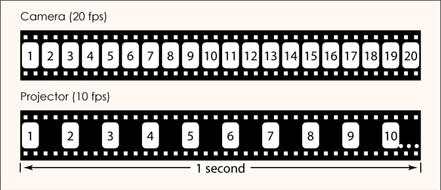
The term comes from early film cameras. Camera operators could crank faster to expose more frames per second. Playback stayed the same, so motion slowed down. If you want a wider list of related camera terms, use the cinematography glossary as a quick reference.
Overcranking also sits inside the bigger toolbox of in-camera timing tricks and camera moves. You can browse more options in Shooting Techniques.
Overcranking vs undercranking
Overcranking means you record at a higher fps than playback, so motion plays back slower. Undercranking means you record at a lower fps than playback, so motion plays back faster.
- Overcranking example: record 60 fps, play back at 24 fps. The shot plays at 0.4x speed, so action slows down.
- Undercranking example: record 12 fps, play back at 24 fps. The shot plays at 2x speed, so action speeds up.
Both effects come from the same idea: your timeline fps stays fixed, and you change how many frames you capture per second.
What overcranking looks like on screen
Overcranking makes motion last longer on screen and keeps fast movement smooth, i.e, overcranking results in slow-motion footage.
You can see each step of the action, since you have more frames showing the move. Impacts also take more screen time, so you can hold on a reaction, a hit, or a burst of debris without frame skipping or jerky motion.
Overcranking math you can plan with
Slow motion depends on two numbers: the record frame rate and the playback frame rate. Lock your playback rate first. Most narrative projects use 24 fps or 25 fps.
Playback speed = (playback fps) ÷ (record fps)
- 24 fps timeline: record 48 fps = 0.5x speed (2x slow motion)
- 24 fps timeline: record 60 fps = 0.4x speed (2.5x slow motion)
- 24 fps timeline: record 96 fps = 0.25x speed (4x slow motion)
- 24 fps timeline: record 120 fps = 0.2x speed (5x slow motion)
- 25 fps timeline: record 50 fps = 0.5x speed (2x slow motion)
- 30 fps timeline: record 60 fps = 0.5x speed (2x slow motion)
If you shoot 120 fps and play back at 120 fps, you do not get slow motion. You get real-time motion at a high frame rate. Overcranking becomes slow motion when playback fps is lower than record fps.
What changes when you raise the frame rate
Overcranking affects more than speed. It changes exposure time per frame and the amount of motion blur you see on moving edges. Adjust shutter angle, light level, aperture, or ISO, or the slow motion can look darker and show less motion blur.
Shutter and motion blur
If you keep a 180° shutter and raise fps, each frame gets less exposure time. Motion blur per frame drops. The slow motion can look sharper, with less blur on moving edges than your normal-speed footage.
If you want blur that feels closer to your normal footage, test a wider shutter angle, such as 270° or 360°, if your camera supports it. A wider shutter gives each frame more exposure time. It also adds more blur per frame. For a deeper breakdown of shutter angle vs shutter speed in video, see camera settings for video production.
Exposure loss rule of thumb
When shutter angle stays the same, doubling the frame rate costs about 1 stop of exposure. That is why high-speed shots often need brighter fixtures, closer placement, or a wider aperture.
Common fixes include a wider aperture, higher ISO, more light on set, or a wider shutter angle if the added motion blur matches the shot. If you want the exposure basics in one place, review the exposure triangle. If you want a practical on-set tool for checking exposure, use a light meter.
Flicker risks with LEDs, screens, and dimmers
Flicker problems often show up when you combine high frame rates with fast shutter speeds. LEDs, practicals on dimmers, TV screens, and some fluorescent fixtures can cause visible flicker, banding, or pulsing brightness. A quick test in the real location is the most reliable way to catch flicker.
Power frequency matters too. In 50 Hz regions, shutter speeds that match the light’s cycle often reduce flicker. In 60 Hz regions, use the same approach with 60 Hz-friendly shutter speeds. Fixtures vary, so do not guess. Test the exact fps and shutter you plan to shoot. If you want more on timing artifacts and anti-flicker tools, see rolling shutter.
Audio: what to expect in off-speed modes
Many cameras label overcranking as off-speed, high-speed, or variable frame rate. Some high-speed modes record no audio, or they record audio that will not sync after conforming. Check the mode first, since some settings force MOS, which means no sync sound for that take.
If you need dialogue, get normal-speed coverage too. If the moment is action-only, plan foley, impacts, ambience, and sweeteners in post.
Music video slow-motion sync trick
If you want slow motion with lip sync, you can play the song faster on set. The performer lip-syncs to the faster track. In post, you conform the clip to your timeline rate, then the slowed picture matches the normal-speed track.
Example: a 24 fps timeline with 60 fps capture is 60 ÷ 24 = 2.5. Play the song at 2.5x speed on set.
Post workflow: conform first, then decide on retiming
Overcranking only helps when the edit uses the captured frames, not generated in-between frames. That starts with conforming the clip to your timeline fps. If you want a broader workflow view, start with post-production in film.
Conform for true slow motion
Conforming means you tell your NLE to treat the clip as your timeline frame rate. Each captured frame becomes a timeline frame. The clip gets longer, and the motion stays smooth without frame blending or AI-generated frames.
NLEs use different labels for this step, such as Interpret Footage, Conform, or Clip Attributes. In every case, you set the clip’s playback rate to match the timeline. If you want software-specific steps and examples, use how to edit slow-motion video.
Retiming tools and artifacts
After conform, you can still retime a shot for an edit beat or a speed ramp. If you slow it down more than the conformed rate allows, your NLE may use frame blending or optical flow. Those tools can create wobbly edges, smears, or rubbery motion on fast details like hands, hair, rain, or debris. Use them on purpose, not by accident.
If your edit needs speed changes inside one clip, read what speed ramping is and how to create it.
If the shot needs VFX, keep shutter and frame rate consistent across your elements, since motion blur and timing have to match. A quick primer is what a VFX plate is.
Camera limits to check before you shoot
High frame rates can force lower resolution, sensor crops, or fewer codec options. Check your camera’s high-speed mode before you pick lenses, shot sizes, and camera distance.
- Resolution drops: some cameras lower resolution at higher fps.
- Sensor crop: some cameras crop the image at high fps, which changes your field of view.
- Codec and bit depth limits: some cameras restrict formats at high fps.
- Data rate rises: cards fill faster and record times drop.
- Output limits: HDMI or SDI output can be limited in some high-speed modes.
If you are planning high data rates, match your media to your codec. Start with memory cards and SSDs for video recording, then review video bitrate so file sizes and compression do not surprise you.
Quick checklist before you overcrank
This checklist covers the problems that usually ruin slow motion, such as flicker, underexposure, and unusable audio.
- Lock your timeline fps first.
- Pick a record fps that matches your slowdown goal.
- Test shutter angle to control how much motion blur you want.
- Calculate the stop loss, then adjust light, aperture, or ISO.
- Test for flicker with your real fixtures, screens, and dimmers.
- Confirm whether your camera records sync audio in that off-speed mode.
- In post, conform the clip before you add any retiming effects.
If you also want the fast-motion counterpart for planning, the glossary of film terms includes overcranking / undercranking in the same reference list.
Summing Up
Overcranking is shooting at a higher frame rate than your playback frame rate, so the shot plays back in slow motion with no frame blending after you conform it. The technique gives you captured frames for slow motion, but it also changes shutter time, motion blur, and exposure. Test for flicker, check high-speed camera limits, and plan audio before you roll.
Read Next: Want to improve how you shoot and move the camera?
Explore all shooting techniques — from handheld and Steadicam to whip pans, slow motion, and continuous takes.
Or head back to the Cinematography section for lighting, lenses, framing, and more visual tools.